
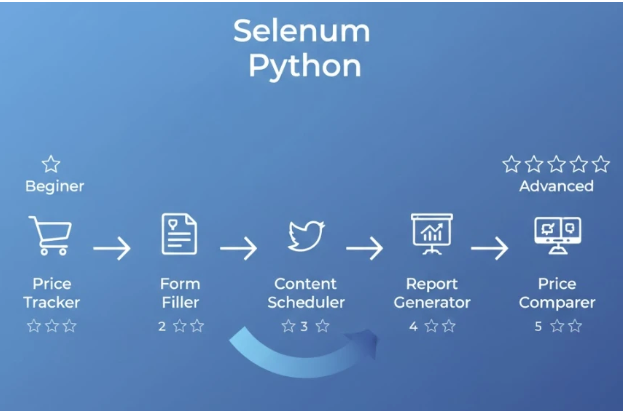
Most Selenium tutorials drown you in theory. By the end, you still don’t know how to automate anything useful. This guide takes the opposite approach: five real projects that solve actual problems, with code you can run today.
Each project builds on the previous one, introducing new Selenium concepts as you need them. No prerequisites beyond basic Python — if you can write a for loop, you’re ready. For those who prefer structured learning, this comprehensive Selenium Python tutorial covers the same concepts in even greater depth.
Project 1: Automated Price Tracker
What you’ll learn: Basic navigation, element location, data extraction
Price tracking is the perfect first project — immediately useful and requires only basic Selenium operations.
from selenium import webdriver
from selenium.webdriver.common.by import By
from datetime import datetime
import csv
def track_price(url, selector, name):
driver = webdriver.Chrome()
try:
driver.get(url)
price = float(driver.find_element(By.CSS_SELECTOR, selector).text.replace(‘$’,”).replace(‘,’,”))
timestamp = datetime.now().strftime(‘%Y-%m-%d %H:%M’)
csv.writer(open(‘prices.csv’,’a’)).writerow([timestamp, name, price])
print(f”[{timestamp}] {name}: ${price}”)
if price < 1000: print(f”ALERT: {name} dropped to ${price}!”)
finally:
driver.quit()
track_price(‘https://store.com/laptop’, ‘.price’, ‘Laptop’)
Key concepts: WebDriver setup, navigation, CSS selectors, text extraction, try/finally cleanup.
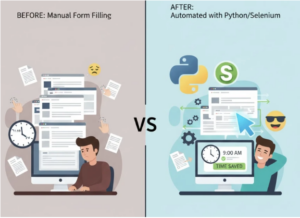
Project 2: Auto-Fill Job Applications
What you’ll learn: Form interactions, handling dropdowns, explicit waits
Job applications ask the same questions repeatedly. This project automates the tedious parts.
from selenium import webdriver
from selenium.webdriver.common.by import By
class JobBot:
def __init__(self):
self.driver = webdriver.Chrome()
self.info = {‘first_name’: ‘John’, ‘last_name’: ‘Smith’, ’email’: ‘[email protected]’}
def fill(self, url):
self.driver.get(url)
for field, value in self.info.items():
try:
el = self.driver.find_element(By.NAME, field)
el.clear()
el.send_keys(value)
except: pass
print(“Form filled! Review and submit.”)
input(“Press Enter…”)
JobBot().fill(“https://company.com/apply”)
Key concepts: Class-based organization, form handling, flexible element finding.
 Project 3: Social Media Content Poster
What you’ll learn: Login flows, handling dynamic content, file uploads
from selenium import webdriver
from selenium.webdriver.common.by import By
from selenium.webdriver.support.ui import WebDriverWait
from selenium.webdriver.support import expected_conditions as EC
from selenium.webdriver.common.keys import Keys
class SocialPoster:
def __init__(self):
self.driver = webdriver.Chrome()
self.wait = WebDriverWait(self.driver, 15)
def login(self, url, username, password):
self.driver.get(url)
self.wait.until(EC.presence_of_element_located(
(By.CSS_SELECTOR, “input[type=’email’], input[name=’username’]”)
)).send_keys(username)
self.driver.find_element(
By.CSS_SELECTOR, “input[type=’password’]”
).send_keys(password + Keys.RETURN)
def create_post(self, content):
self.wait.until(EC.element_to_be_clickable(
(By.CSS_SELECTOR, “[aria-label=’Create’], .new-post-btn”)
)).click()
text_area = self.wait.until(EC.presence_of_element_located(
(By.CSS_SELECTOR, “textarea, [contenteditable=’true’]”)
))
text_area.send_keys(content)
poster = SocialPoster()
poster.login(“https://social.com/login”, “user”, “pass”)
poster.create_post(“Check out our latest update!”)
Key concepts: WebDriverWait, expected conditions, authentication flows.
Project 4: Automated Report Generator
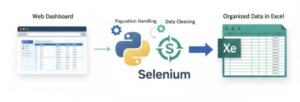
What you’ll learn: Scraping tables, handling pagination, Excel export
Extract data from dashboards that don’t offer export features.
from selenium import webdriver
from selenium.webdriver.common.by import By
from selenium.webdriver.support.ui import WebDriverWait
from selenium.webdriver.support import expected_conditions as EC
import pandas as pd
class ReportScraper:
def __init__(self):
self.driver = webdriver.Chrome()
self.wait = WebDriverWait(self.driver, 10)
self.all_data = []
def scrape_table(self):
self.wait.until(EC.presence_of_element_located((By.CSS_SELECTOR, “table”)))
headers = [h.text for h in self.driver.find_elements(By.CSS_SELECTOR, “th”)]
for row in self.driver.find_elements(By.CSS_SELECTOR, “tbody tr”):
cells = row.find_elements(By.CSS_SELECTOR, “td”)
self.all_data.append({headers[i]: cells[i].text for i in range(len(cells))})
def handle_pagination(self):
while True:
self.scrape_table()
try:
btn = self.driver.find_element(By.CSS_SELECTOR, “.next-page”)
if ‘disabled’ in btn.get_attribute(‘class’): break
btn.click()
except: break
scraper = ReportScraper()
scraper.driver.get(“https://dashboard.com/reports”)
scraper.handle_pagination()
pd.DataFrame(scraper.all_data).to_excel(“report.xlsx”, index=False)
Key concepts: Table scraping, pagination handling, pandas export.
 Project 5: Multi-Site Price Comparison
What you’ll learn: Configuration-driven design, comprehensive error handling
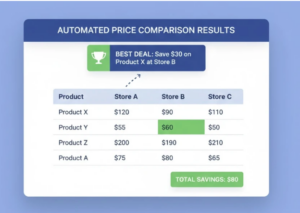
Compare prices across multiple retailers with a professional-grade tool.
from selenium import webdriver
from selenium.webdriver.common.by import By
from selenium.webdriver.support.ui import WebDriverWait
from selenium.webdriver.support import expected_conditions as EC
import pandas as pd, re
class PriceComparer:
def __init__(self):
self.driver = webdriver.Chrome()
self.wait = WebDriverWait(self.driver, 10)
self.stores = [
{‘name’: ‘Store A’, ‘url’: ‘https://a.com/search?q=’, ‘product’: ‘.item’, ‘price’: ‘.price’},
{‘name’: ‘Store B’, ‘url’: ‘https://b.com/s/’, ‘product’: ‘.card’, ‘price’: ‘.cost’},
]
def search_store(self, store, query):
products = []
try:
self.driver.get(f”{store[‘url’]}{query}”)
self.wait.until(EC.presence_of_element_located((By.CSS_SELECTOR, store[‘product’])))
for el in self.driver.find_elements(By.CSS_SELECTOR, store[‘product’])[:5]:
name = el.find_element(By.CSS_SELECTOR, “h3”).text
price = float(re.search(r'[\d.]+’, el.find_element(By.CSS_SELECTOR, store[‘price’]).text).group())
products.append({‘name’: name, ‘price’: price, ‘store’: store[‘name’]})
except: pass
return products
def compare(self, query):
results = [p for s in self.stores for p in self.search_store(s, query)]
df = pd.DataFrame(results).sort_values(‘price’)
print(df.to_string(index=False))
return df
comparer = PriceComparer()
comparer.compare(“headphones”)
comparer.driver.quit()
Key concepts: Configuration-driven architecture, error handling, regex parsing.
 Start Building Today
You now have five complete projects demonstrating real Selenium Python automation. Pick the one most relevant to your needs, run it, modify it, and see what happens. Every error you solve deepens your understanding more than reading ever could.
For structured guidance building even more sophisticated automation, explore this in-depth Selenium Python resource with additional projects and professional best practices.
